
Follow one order, start to finish
How Packergo works, in six steps.
A customer places an order in your store. Your team picks it, scans it, and ships it. Here is exactly what happens in between, and who does what.
Step 01 of 06 · Store owner
Connect your store
You install Packergo on your Shopify store. From that point, new customer orders flow into Packergo on their own, so nobody has to copy orders by hand.
Packergo does
Receives order information automatically when a supported store event happens.
Result
Every new order is ready for the team without manual entry.
Step 02 of 06 · Admin or logistics
Orders land in one list
All orders sit in a single order list. Orders from Shopify arrive automatically, and anything else can be added with a CSV or Excel import or entered manually.
Packergo does
Keeps Shopify, imported, and manually added orders in the same operational list.
Result
The team starts each day from one place instead of scattered sources.
Step 03 of 06 · Admin or logistics
Assign work to a warehouse and a packer
You route each order to a warehouse and a packing team member. Each packer only sees orders for their own warehouse, so two people never grab the same box.
Packergo does
Records who owns each order and limits each packer to their warehouse scope.
Result
Everyone knows exactly which orders are theirs.
Step 04 of 06 · Packing team
Pick from a clear picklist
The packer opens a picklist that groups everything by product with exact quantities. They walk the shelves once and collect what the list shows.
Packergo does
Aggregates order lines into per-product totals with quantities still to scan.
Result
Picking follows the list instead of memory.
Step 05 of 06 · Packing team
Scan each product and verify it
The packer opens the order by scanning its code, then scans each product. Packergo checks every scan against the expected items. A wrong product or an extra scan is flagged on the spot, with the remaining items shown.
Packergo does
Compares each scanned product against the catalog and the order quantity that is still open.
Result
Mismatches surface while the box is still open, not after it ships.
Step 06 of 06 · Packing team
Scan the label and finish
Once every item checks out, the packer scans the shipping label. The label must match the order before it closes. Then dashboards show the order as complete for the whole business.
Packergo does
Requires an exact tracking match after all items scan, then marks the order scanned.
Result
The right box leaves with the right label, and the team can see it is done.
Watch it work
Watch one order move through Packergo
Order #PKG-10482 has four products. Press the button and follow it from arrival to shipment, including the moment a wrong product gets caught.
Order #PKG-10482
4 items · 0 of 4 verified
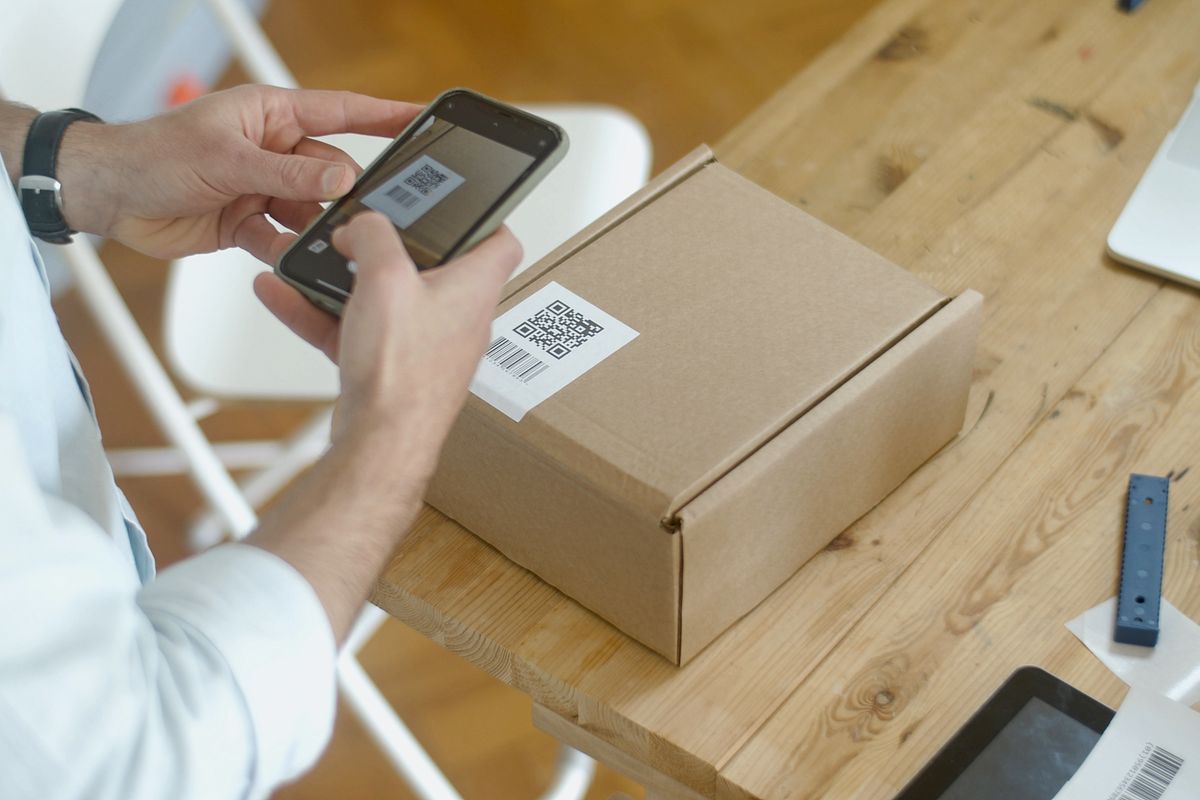
Photos: Pexels
Customer order flows straight into the Packergo workflow.
Order · Step 1 of 10
Your next order is here
A customer just ordered four products. Packergo takes the order into the workflow.
No manual entry. The order is ready to move.
Demo story with sample data. Your orders move through the same steps.
One order. One connected journey.
Packergo connects the steps between receiving an order and shipping the right package.
- Order
- Assign
- Pick
- Scan
- Verify
- Pack
- Ship
What you get with Packergo
The workflow you just watched, translated into customer value.
Control
Know where orders are and what needs to happen.
Clarity
Give teams clear work at each step.
Verification
Check products before they become packages.
Connection
Keep the order journey connected.
Visibility
Understand operational progress.
Flexibility
Support Shopify, bulk import, and manual orders.
Three roles, one workflow.
Everyone signs in with their own account and sees only the work meant for them.
Admin
Sets up the store, users, warehouses, and products. Sees all orders and dashboards.
Logistics
Routes orders to warehouses and packers. Monitors picklists and daily progress.
Packing
Works an assigned list: pick, scan, verify, and close each order at the bench.
End the day knowing where every order stands
Dashboards show pending, scanned, and cancelled counts with per-product and per-agent progress. No chasing people for updates.
Questions teams ask before starting
How do orders get into Packergo?
Orders from a connected Shopify store arrive automatically. You can also import orders from a CSV or Excel file, or add a single order by hand for anything that did not come from Shopify.
What happens when the wrong product is scanned?
Packergo flags the scan during the packing workflow and shows which items are still pending. The packer rescans the correct product and continues. The check happens while the box is still open.
Do I need Shopify to use Packergo?
Shopify powers the automatic order flow, but bulk import and manual order entry work without it. Every order type moves through the same assign, pick, scan, and finish workflow.
What if the internet drops in the warehouse?
The packing scan page saves scans locally and syncs them when the connection returns, so bench work does not stop on a short outage.
Who sees what inside Packergo?
Admins see everything. Logistics coordinators see orders and progress across warehouses. Packers see only their own warehouse and their assigned orders, plus their own status pages.
What happens after an order is complete?
The order is marked scanned and leaves the active queue. Dashboards show pending, scanned, and cancelled counts, plus per-product and per-agent progress for the day.